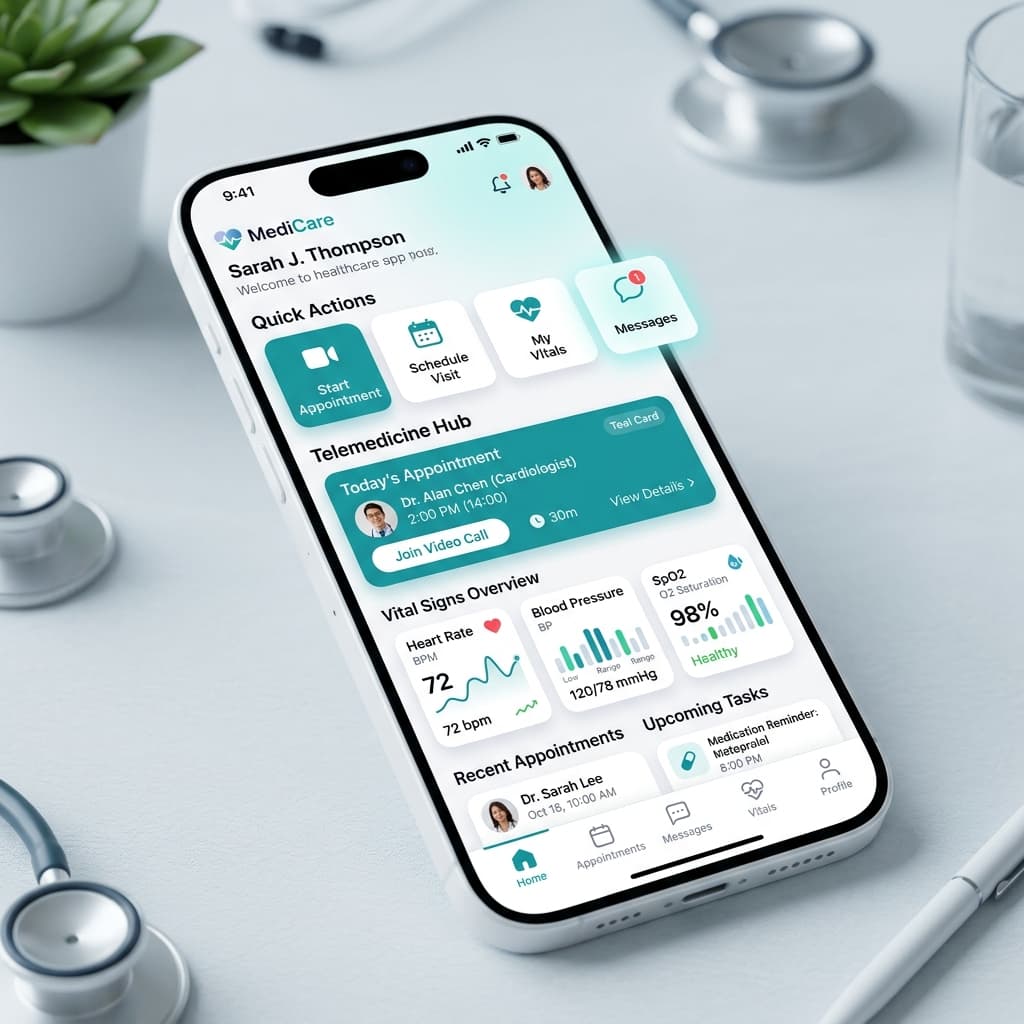
Liquid Glass and Translucent UI: How to Design Depth Without Losing Readability
Translucent, glass-like interfaces are back in a big way. Here is a practical guide to using layered glass effects, blur, and depth in UI design while keeping text legible, accessible, and fast.
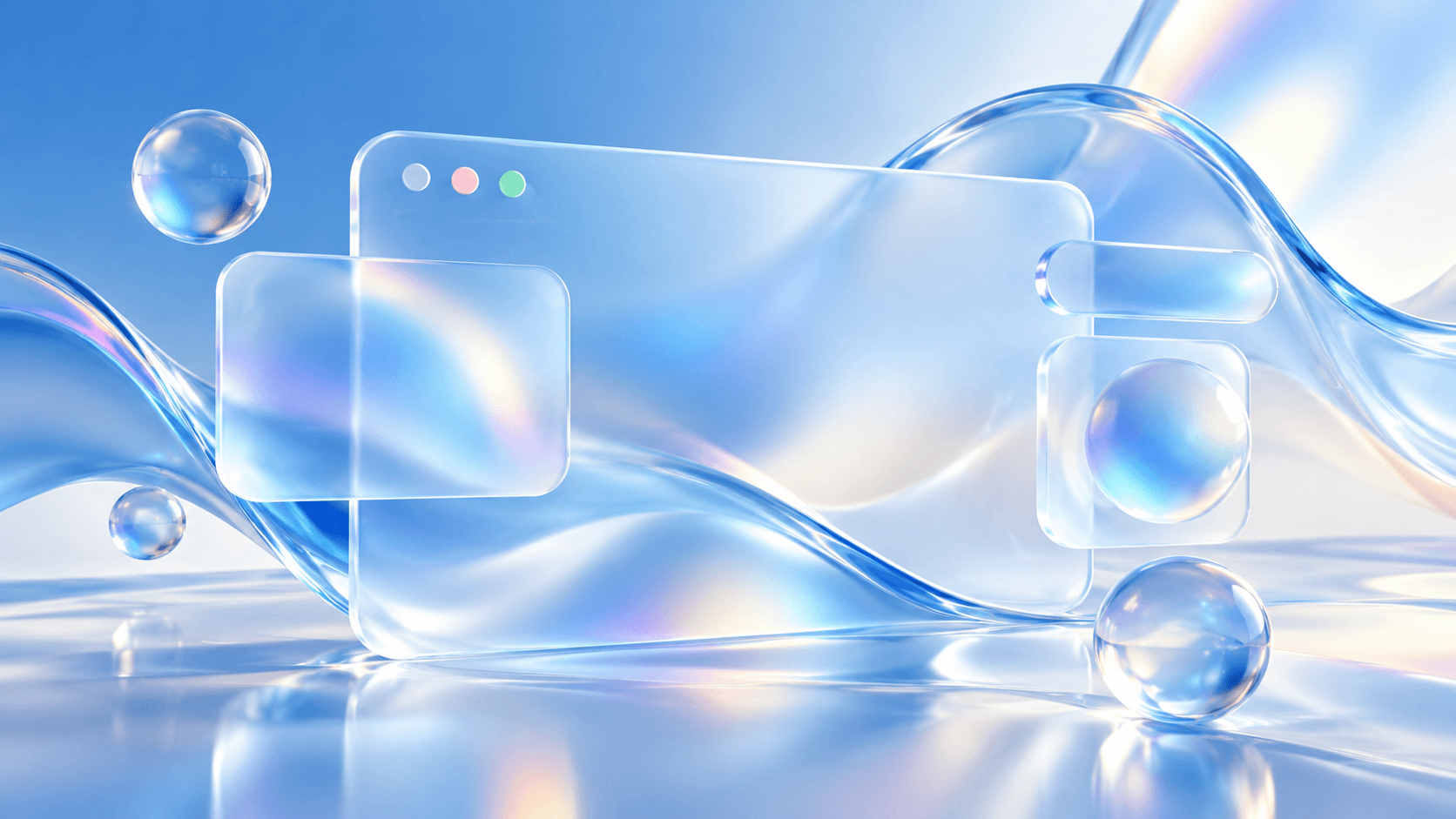
After a decade of flat design, depth is back. Since Apple introduced its Liquid Glass design language in 2025, translucent layers, soft refraction, and floating controls have spread across operating systems, SaaS dashboards, and marketing sites. Designers love the effect because it feels modern, tactile, and alive.
But glass is a difficult material. Used carelessly, it produces low-contrast text, visual noise, and sluggish performance. This guide covers how to use translucent UI with intent, so your interfaces look premium and still work for everyone.
Why Translucent UI Is Trending Again
Glassmorphism had a brief moment around 2020, mostly on Dribbble shots. The new wave is different because it is driven by platform design systems, not just visual experiments. Modern devices have the GPU power to render real-time blur and lighting, and content-first layouts benefit from controls that float above content instead of pushing it aside.
- Content stays visible: toolbars and tab bars sit on top of content rather than hiding it behind solid blocks.
- Hierarchy through depth: layers communicate what is primary and what is temporary.
- A sense of physicality: subtle highlights and motion make digital controls feel touchable.
1. Use Glass for Controls, Not for Content
The most important rule: glass belongs on the navigation and control layer, such as toolbars, tab bars, floating buttons, sheets, and popovers. Long-form text, data tables, and forms should sit on solid or near-solid surfaces. When everything is translucent, nothing has hierarchy, and reading becomes tiring.
2. Protect Legibility With Contrast Layers
The background behind glass is unpredictable. A white label may look perfect over a dark photo and disappear over a bright one. Plan for the worst case, not the mockup.
- Add a tint or dimming layer beneath text so contrast stays stable across backgrounds.
- Test text against your lightest and busiest content, not just a neutral gradient.
- Aim for WCAG contrast of at least 4.5:1 for body text and 3:1 for large text and icons.
- Prefer medium or semibold font weights on glass; thin weights break down quickly over blur.
3. Respect Reduced Transparency and Motion Settings
Many users turn on system settings like Reduce Transparency, Increase Contrast, or Reduce Motion. A well-built glass UI responds to them. On the web, media queries such as prefers-reduced-transparency, prefers-contrast, and prefers-reduced-motion let you swap blur for solid fills and remove shimmer effects. Accessibility is not a fallback; it is part of the design.
“A beautiful effect that only works for some users is decoration. A beautiful effect that adapts for every user is design.”
4. Keep Depth Consistent With a Layer System
Depth only communicates meaning when it follows rules. Define a small set of elevation levels in your design system, for example base content, floating controls, and modal surfaces, and assign each a fixed blur strength, tint, border, and shadow. Store these as design tokens so designers and developers use the same values everywhere.
5. Mind Performance on Real Devices
Background blur is expensive to render, especially on mid-range phones and large screens. Stacking multiple blurred layers or animating them during scroll can drop frame rates and drain battery. Limit blur to a few key surfaces, avoid nesting glass inside glass, and always test on the hardware your users actually own, not just a high-end laptop.
Quick Do's and Don'ts
- Do use glass for floating navigation, toolbars, and temporary overlays.
- Do add tint and contrast protection behind every text label.
- Do provide solid fallbacks for reduced transparency settings.
- Don't place paragraphs or forms on heavy blur.
- Don't stack several translucent layers on top of each other.
- Don't judge the design only on a static mockup; test it over real, changing content.
Conclusion
Translucent UI is more than a visual trend; it is a shift toward interfaces that feel layered, physical, and content-first. The designers who stand out will be the ones who pair the beauty of glass with the discipline of contrast, accessibility, and performance. Use depth to guide attention, and your interface will feel both modern and effortless.
Find the UX and accessibility issues on your own site in under a minute.
Run a free audit